Details
-
Bug
-
Status: Open
-
 Medium
-
Resolution: Unresolved
-
Xray Cloud 16.0.0
-
None
-
None
-
Test Coverage.
-
Enterprise
-
Description
Description
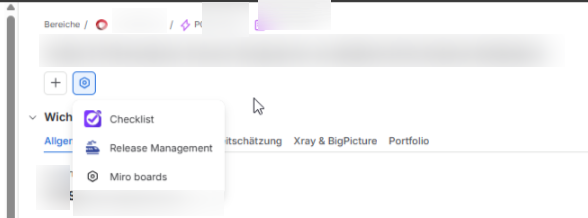
In some instances, the Xray Test Coverage panel does not load and does not appear under the hexagon menu, even for issue types that are configured to display Test Coverage. The issue occurs because the Jira project property xray-project-covered-issue-types, which determines whether the panel should be displayed, is missing its expected values or is in an invalid state.
Expected Result
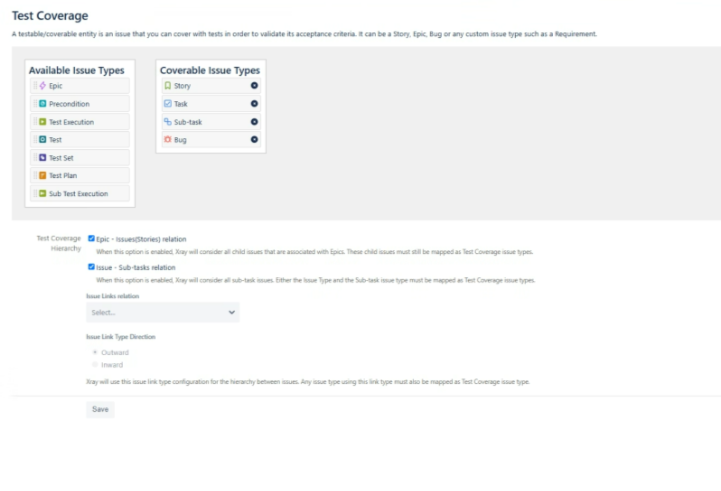
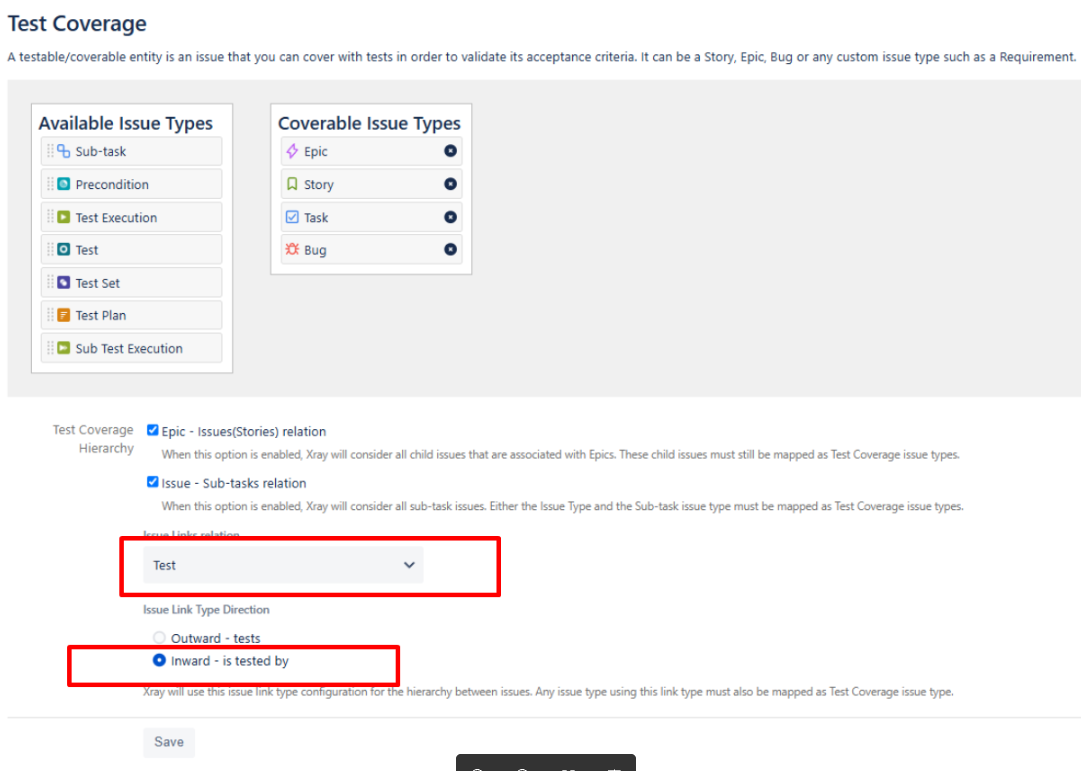
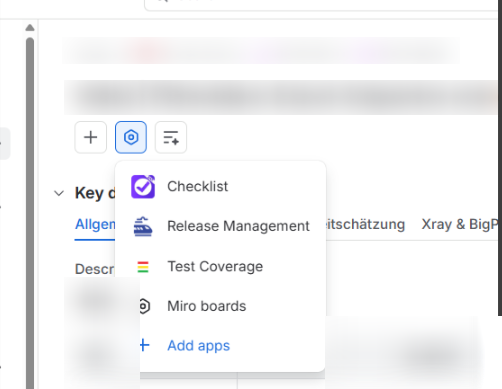
The Test Coverage panel should be displayed under the hexagon menu for all issue types configured in Project Settings → Xray Settings → Test Coverage.
Actual Result
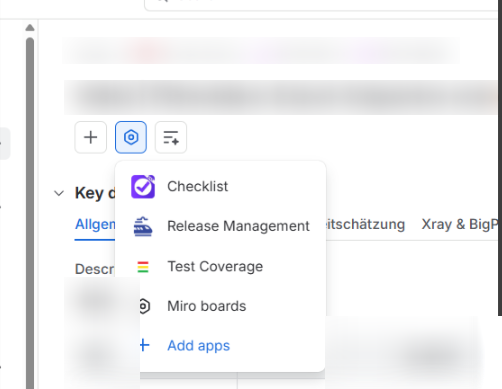
The Test Coverage panel is not displayed under the hexagon menu because Jira cannot determine that the current issue type is configured for Test Coverage.
Technical Details
When opening an issue, Jira checks the project property xray-project-covered-issue-types to determine whether the Xray Test Coverage panel should be displayed. This property stores the list of issue type IDs for which the Test Coverage panel is enabled. If the issue type of the opened issue matches one of the IDs in this property, the Test Coverage panel is displayed.
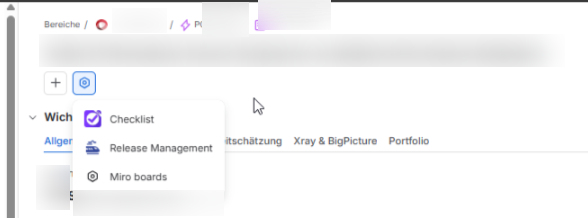
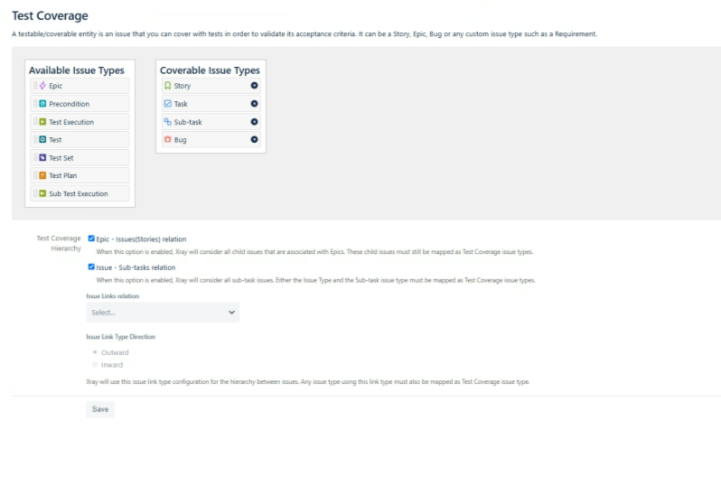
The xray-project-covered-issue-types project property is automatically maintained through Project Settings → Xray Settings → Test Coverage. Each time the configuration is saved, Jira updates this project property to reflect the currently selected issue types.
For affected instances, the xray-project-covered-issue-types project property is missing its expected values or is in an invalid state. As a result, Jira can no longer determine that the Test Coverage panel should be available, causing the panel to not load or appear under the hexagon menu.
As a workaround, opening Project Settings → Xray Settings → Test Coverage and clicking Save recreates and refreshes the xray-project-covered-issue-types project property with the correct values. Once the property is updated, the Test Coverage panel is displayed as expected.
Based on our investigation, saving the Test Coverage configuration is safe and has no adverse effects. Additionally, the Issue Links relation field being empty is unrelated to this behavior and does not affect whether the Test Coverage panel is displayed.
Attachments

Issue Links
- duplicates
-
XCC-2954 Loading...